Web Workbench Guide
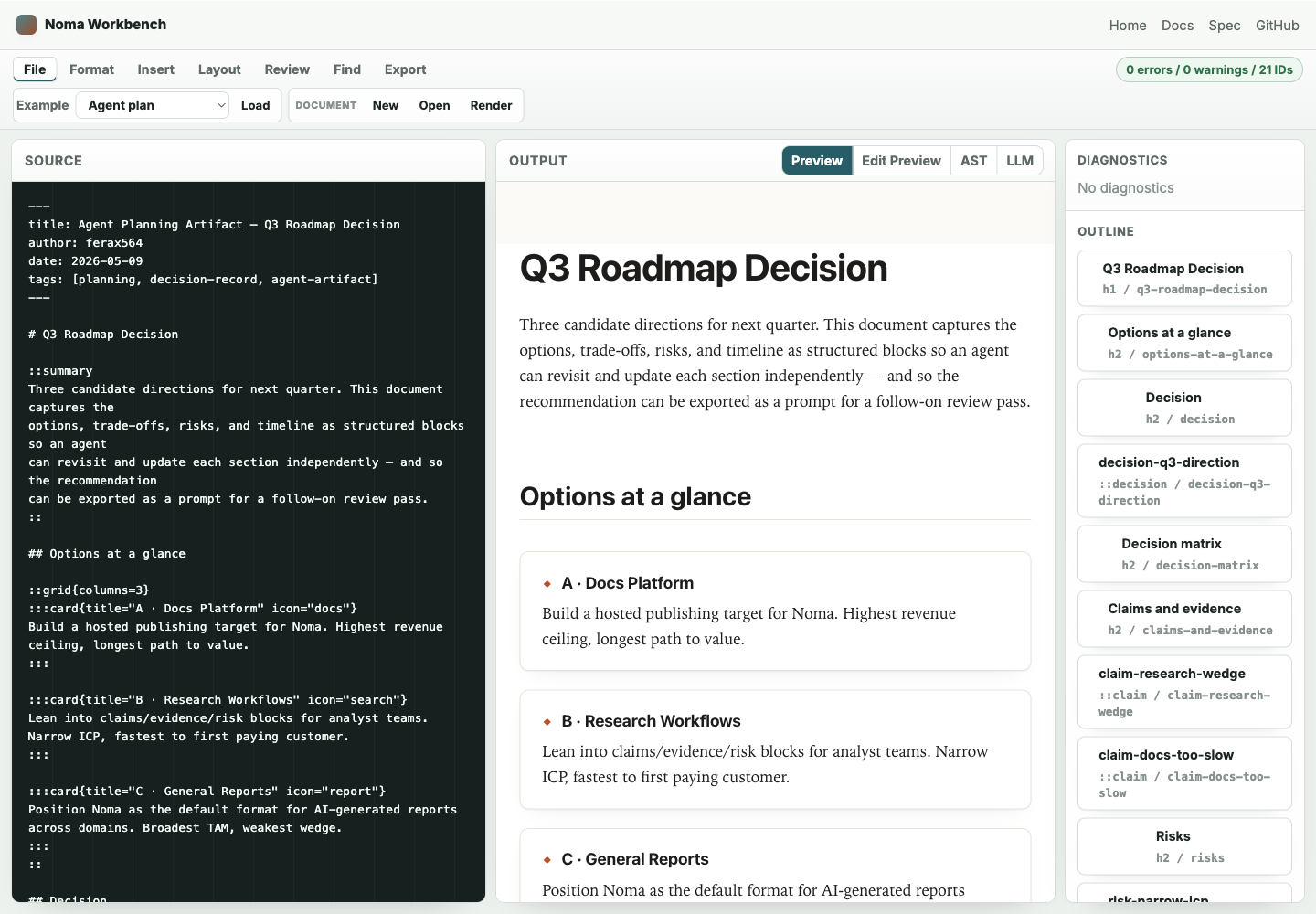
The Noma Workbench is the static, browser-based editor for .noma documents. It is designed for people who want a Word-like authoring surface without giving up source control, block IDs, validation, and renderer output.
Open it from the built site:
npm run build:site
open dist/workbench.html
Or use the published page:
What it is for
Use the workbench when you want to draft, inspect, and hand off a Noma document without installing an editor extension.
It covers the main Word-style workflows that fit Noma's source-first model:
- Create a new document or load one of the shipped examples.
- Open a local
.nomafile from disk. - Format selected text as bold, italic, inline code, or a link.
- Change the current line to H1, H2, or H3.
- Convert selected lines to bullets, numbered lists, quotes, or code blocks.
- Toggle Edit Preview to edit rendered headings, paragraphs, list items,
and quotes directly, with changes synced back to the .noma source.
- Insert Noma blocks for tables, figures, callouts, tasks, controls, math,
headers, footers, page setup, page breaks, comments, change requests, and footnotes.
- Find text in the source.
- Preview safe HTML, inspect diagnostics, jump through the outline, and switch
to AST, LLM, or proof output.
- Paste agent patch ops, generate a browser-side safety proof, and apply only
when the post-document validates without errors.
- Copy a proof summary link that carries hashes, status, diagnostics, and the
operation list without embedding the private source document.
- Copy a shared draft link that carries the current
.nomasource in the URL
fragment, or a review packet with the draft link, hash, diagnostics, IDs, and LLM context for async handoff.
- Edit ID-bearing
::tableand::datasetblocks through a compact grid that
writes source-preserving table/dataset patch ops.
- Download the current document as
.noma, HTML, or JSON. - Copy LLM context or the DOCX CLI command for Word handoff.
- Print the rendered preview from the browser.
Screen layout
The workbench has four persistent areas:
| Area | What it does |
|---|---|
| Menu bar and ribbon | File, format, insert, layout, review, find, and export tabs. The active tab shows only the relevant commands. |
| Source | The editable .noma source. This remains the source of truth. |
| Output | Safe rendered preview, JSON AST, deterministic LLM context, or the latest agent safety proof. |
| Inspector | Agent proof controls, table/data editor, diagnostics, and outline navigation derived from the current AST. |
The browser stores the current source in localStorage so a reload keeps the last draft. Use Download Noma before moving the draft into a repository.
Authoring workflow
- Load an example or click New.
- Draft in the source pane.
- Use the menu bar to choose a command group, then use the active ribbon for
common formatting and Noma block templates.
- Watch the status pill and diagnostics panel as the validator checks the
document.
- Use the diagnostics summary to decide whether to fix syntax, references,
evidence, stale citations, or profile rules before polishing output.
- Use the outline to jump to headings and ID-bearing blocks.
- Toggle Edit Preview when you want to revise simple rendered prose
without moving your cursor back to the source pane.
- Use Tables & Data when a
::tableor::datasetblock needs a small
cell, row, or column update.
- Use Agent Proof when you want to simulate patch ops before writing them.
- Switch to AST or LLM output when you need to inspect structure or copy
agent context.
- Download the source or rendered artifacts.
Word-style handoff
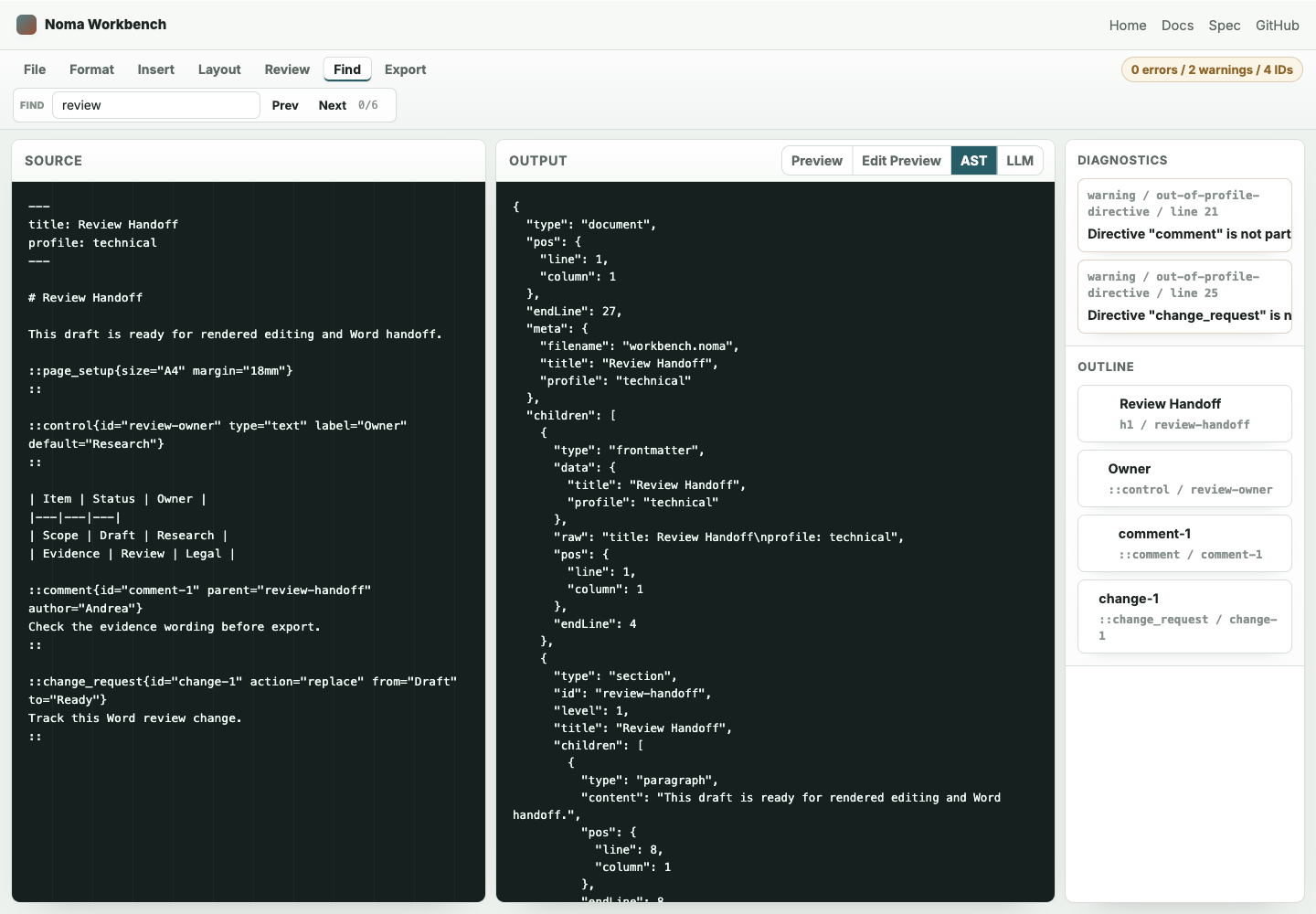
The workbench does not try to become a full WYSIWYG clone. It keeps Noma source visible and uses Word-like controls for the operations users expect while drafting:
| Word workflow | Workbench equivalent |
|---|---|
| New/open document | File tab with New, Open, example loading, and Render. |
| Text formatting | Format tab with bold, italic, code, links, headings, lists, quote, and code-block commands. |
| Insert menu | Insert tab with table, figure, callout, task, control, and math block templates. |
| Page layout | Layout tab with TOC, header, footer, page setup, and page break templates. |
| Review | Review tab with comment, change request, footnote, prove, apply, and share-proof controls. |
| Find | Find tab with source search and previous/next navigation. |
| Print/export | Export tab with Noma, HTML, JSON, LLM, DOCX-command, and print actions. |
Rendered editing mode
Edit Preview makes the safe rendered page directly editable for source-backed text blocks:
| Rendered element | Source update |
|---|---|
| Heading | Replaces the heading title while preserving # level and trailing {id=...} attributes. |
| Paragraph | Replaces the paragraph line range with plain Noma prose. |
| List item | Replaces the item text while preserving the bullet or number marker. |
| Quote | Rewrites the quote lines with > prefixes. |
Edits commit when focus leaves the rendered element. Press Escape before blur to cancel the current rendered edit. Pasted content is inserted as plain text so the preview cannot inject raw HTML into the source.
Complex semantic blocks, tables, datasets, layout directives, comments, tracked changes, and DOCX-specific structures remain source-first unless they have a dedicated side-panel editor. Editing rendered inline markup as plain text also means the changed span is serialized as plain prose, which is the expected tradeoff for this browser-only mode.
Agent proof panel
The Agent Proof panel makes the browser editor agent-oriented without turning it into an agent host. Paste one patch operation or an array of patch operations as JSON:
[
  {
    "op": "update_attribute",
    "id": "decision-q3-direction",
    "key": "status",
    "value": "accepted"
  }
]
Click Prove in the Review tab. The workbench simulates the patch against the current source, parses and validates the post-document, computes pre/post hashes, measures source-line preservation, and renders a proof report in the Output pane.
Apply stays disabled until the proof has a writable post-document with no post-validation errors. A proof with warnings can still be applied, but it is visibly marked as warning state so a human or agent can review the diagnostics before writing.
Share Proof copies a URL fragment that includes proof metadata:
| Field | Why it is included |
|---|---|
| Status | Whether the proof passed, warned, or failed. |
| Patch ops | The exact operation list under review. |
| Pre/post hashes | The document state the proof describes. |
| Diagnostics summary | The post-validation health without requiring source access. |
| Preservation | A quick check that the edit stayed localized. |
The share link deliberately does not embed the full source or post-source. It is safe to use as a review pointer while the canonical document remains in the repository, local draft, or agent host.
Tables and data
The Tables & Data panel discovers ID-bearing ::table and ::dataset directives in the current AST.
Supported editing paths:
| Block | Supported in the grid |
|---|---|
::table{id="..." header} | Edit cells, edit existing header cells, add rows, add columns. |
::table{id="..."} | Edit cells, add rows, add columns with inferred source column labels. |
::dataset{id="..." format="csv"} | Edit cells, add rows, add columns. |
::dataset{id="..." format="tsv"} | Edit cells, add rows, add columns. |
::dataset{id="..." format="yaml"} | Edit cells, add rows, add columns when rows are source-preserving arrays. |
::dataset{id="..." format="json"} | Edit cells, add rows, add columns for row-array and record-array datasets. |
When you click Apply, the grid does not rewrite the whole block. It generates granular patch ops such as update_table_cell, insert_table_row, insert_dataset_column, and update_dataset_cell, places them in the Agent Proof panel, runs the proof, and writes only if the proof passes. Row and column deletion remain patch/source operations for now so the browser grid cannot accidentally remove data.
Diagnostics-first editing
The diagnostics side panel now starts with a severity summary. Individual diagnostics remain clickable when they have line information, so syntax, reference, evidence, citation, and profile problems can be corrected at the source line instead of discovered only during export.
This is intentionally different from typical Markdown preview panes. The workbench treats diagnostics as part of the writing loop, not as a terminal build step.
For a true Word package, use the copied DOCX command after saving the source:
npm run noma -- render document.noma --to docx --out document.docxSafety model
The workbench renders with a safe preview posture:
- Raw
::html,::svg, and::scriptescape hatches are blocked. - External math, diagram, Plotly, and figure image loads are disabled in the
preview path.
- Interactive controls render as static defaults.
- The preview runs in a sandboxed iframe.
This makes the workbench suitable for inspecting untrusted drafts while still surfacing the source and validator diagnostics. For production HTML, render from the CLI with the strictness flags that match your publishing context.
Limitations
The workbench is deliberately source-first:
- It does not hide the
.nomasyntax. - It does not offer full visual editing for every semantic block; rendered
editing covers simple text nodes, while the side panel covers proofed table/dataset edits.
- It does not provide realtime multi-cursor collaboration; shared draft links
and review packets are async handoff tools.
- It does not write directly back to a local file without using the browser's
download flow; proofed changes update the browser draft and should still be downloaded or copied into the repository.
- It does not edit DOCX packages in the browser. DOCX export and return paths
stay in the CLI.
Those constraints keep the UI static-site deployable and make the parser, validator, and renderers the only source of document truth.